

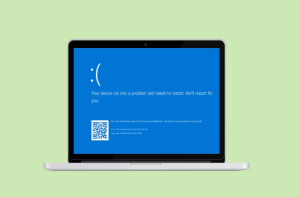
Blue Screen of Death (BSOD) is a Windows users’ most dreaded and unpredictable error that indicates system interruptions and possible data loss.
Windows uses the Blue Screen of Death, so named because it displays error codes on a blue screen, to notify users of serious system issues that have resulted in system crashes. It’s a safety feature that stops all activities when a fatal mistake is discovered, preventing additional damage to the computer.
When using a computer on a regular basis, one of the most frequent fault scenarios that users may encounter is the Blue Screen error code 1033. Hexadecimal STOP codes are linked to each BSOD error, such as the blue screen 1033 error, which aid in determining the underlying cause of the problem.
We refer to these hexadecimal numbers as the ‘blue screen error codes.’ Error codes include 0x0000007E, 0xDEADDEAD, 0xC0000225, and others.
The Blue Screen of Death (BSOD) may also show particular strings of characters in addition to error codes such as:
- ‘PAGE_FAULT_IN_NONPAGED_AREA:’ It happens when the system attempts to access an incorrect or inaccessible nonpaged region of memory.
- ‘KERNEL_SECURITY_CHECK_FAILURE:’ Brought on by damaged system files, mismatched drivers, or malfunctioning hardware. It also signals a problem with the kernel’s security procedures.
- ‘IRQL_NOT_LESS_OR_EQUAL:’ Indicates an improper use of IRQL (Interrupt Request Level) 4 by a driver or piece of software while attempting to access memory.
- ‘SYSTEM_THREAD_EXCEPTION_NOT_HANDLED:’ Produced when a system thread fails to handle an exception, which frequently happens as a result of mismatched drivers.
It’s crucial to remember that every blue screen problem has unique possible causes and fixes.
Causes of Blue Screen of Death
Numerous problems, including but not limited to the following, can cause BSOD errors:
- Hardware Malfunctions: This often includes issues with RAM, hard drives, and overheating.
- Driver Incompatibility: It occurs due to conflicting and corrupt device drivers that lead to system problems.
- Software Glitches: They can be caused by virus infestations, corrupted system data, or poorly written programs that crash.
To properly address and resolve a BSOD, one must comprehend its underlying cause.
It’s important to keep in mind that minor issues are not capable of causing the 1033 error message. Therefore, if your computer has shown this error message, there is probably a major problem that has resulted in an unplanned shutdown or restart of your operating system. But don’t worry too much—most of the time, the operating system takes care of things on its own. Even if it doesn’t, you can quickly get your computer back up and running with a few really easy system tweaks.
How to Fix the Blue Screen 1033 Error?
Troubleshooting these issues often involves looking through the RAM dump files, updating drivers, confirming hardware compatibility, and doing a virus scan.
Unplug the computer and restart it.
- This is the most straightforward yet successful approach to solving this issue. All that has to be done is disconnect the power supply to restart the machine.
- If the computer hasn’t already shut down, do it now.
- Unplug the power cord; if it’s a laptop, remove the battery.
- Give it a minimum of thirty seconds.
- Insert the power cord (or, if it’s a laptop, put the battery back).
- Turn on the computer.
- Test to check whether the problem still exists after running the computer continuously for awhile.
Use System Restore to undo recent modifications.
This workaround necessitates the use of a Windows program called System Restore. In essence, it recovers the machine by rolling back any recent modifications, including registry edits and new software/driver installations. To apply this solution, take the following actions:
- Click the ‘Start Menu.’
- Look up ‘System Restore’ and choose ‘Reset this PC.’
- Select ‘Get started’ from the next screen.
- Following that, you will get a new screen with two choices: ‘Remove everything;’ ‘Keep my file.’
- Choose the first option.
- Proceed with the subsequent on-screen directions to finish the whole process.
- Ensure that system restore is performed in order to reverse recent program and driver installations that may be the source of the issue.
Utilizing the Action Center to look for fixes
This repair includes using a built-in function to automatically look for solutions. In the event of a hardware or software issue, the action center will look into potential fixes. To carry out this:
- Use the ‘Start Menu’ to search for ‘Control Panel.’
- Navigate to ‘System and Security.’ Select it by clicking.
- Select ‘System and Maintenance.’
- Click on ‘Check for solutions’ under ‘Check for solutions to problem reports.’
- After then, Windows will search for any fixes for issues that have been reported recently.
Rollback Drivers
It is plausible that hardware problems are being caused by recently updated drivers. Reverting any recently upgraded drivers to a previous version is the best course of action to check whether the problem still exists.
- Visit the manufacturer’s website to obtain a previous driver version.
- To make the most recent driver obsolete, install the earlier version of the driver.
Uninstall any recently installed applications
Problems that lead to the blue screen might also arise from recently installed applications. Just remove any recently installed applications to see whether the problem still exists.
- Look for ‘Control Panel’ in the ‘Start Menu’ to get access to it.
- Click ‘Uninstall a program’ under ‘Programs.’
- Remove any applications that you recently installed.
How Can You Recover Data Following a BSOD Error?
Although there’s a good chance the aforementioned fixes have resolved your issue 1033 and other blue screen error codes, it’s still possible they haven’t. In this scenario, you should seek expert assistance to retrieve your computer, which your neighborhood repair shop or warranty center should be able to do without any problems.
There is a possibility that you will lose some data while self-troubleshooting or even undergoing expert repair. In such cases, software like Stellar Data Recovery for Windows Tool can help you recover your data.
The following procedures would normally be followed in order to recover data using Stellar Data Recovery Software for Windows, based on the information provided:
For software setup, adhere to the installation guidelines.
- Start the Application: On your Windows PC, start the Stellar Data Recovery Software when it has been installed.
- Choose the Location: Decide on the disk or location you wish to retrieve your data from. This might be any kind of storage device, including an external or internal hard disk.
- Scan for Lost Data: To locate deleted or lost files, the program will search the specified place. You might be able to make a decision.
- Scan for Lost Data: To locate deleted or lost files, the program will search the specified place. Depending on your unique needs, you might be able to pick between a rapid scan and a deep examination.
- Preview and Recover Files: The program will present a list of files that can be recovered after the scan is finished. To ensure that the files are intact, you may preview them and choose which ones you wish to restore.
- Recover Data: Click to start the recovery procedure after you’ve chosen the data you wish to recover. To prevent overwriting the lost data, select a secure place before saving the restored information.
These broad instructions should assist you in recovering data using the Stellar Data Recovery Software for Windows.
Conclusion
In conclusion, the Blue Screen of Death (BSOD) is a dreaded occurrence for Windows users, indicating serious system interruptions and potential data loss. The Blue Screen Error 1033 is a common situation, characterized by hexadecimal STOP codes associated with various error codes. The BSOD can result from hardware malfunctions, driver incompatibility, or software glitches. To address and resolve BSOD issues, troubleshooting steps such as unplugging and restarting the computer, using System Restore, and rolling back drivers can be effective. Even in the event of data loss, recovery options like Stellar Data Recovery Software for Windows can help retrieve lost data following a BSOD error.
